Protecting
Secret Keys in PC Memory
The LineLogix system includes the Encrypted Key mechanism and the
Key Check Helper, which use AES-128 encryption to safeguard
customer keys. Secret keys are never stored or displayed in
their unencrypted form; however, they must temporarily exist
in that form in the computer's memory. A determined attacker could
retrieve them, given physical or network access to the computer.
Common sense measures to protect customer keys include:
- Run a malware
scan before encoding secure elements, to reduce the risk
of your work being spied on.
- Disconnect
ethernet and disable wifi while encoding secure elements.
- Reboot
after encoding secure elements, and before reconnecting to
networks.
- Consider storing
the encrypted keys on an external device (like a USB
drive) that is kept locked up when not in use.
- Set the PC to
erase its Page File (virtual RAM in a disk file) at
every shutdown. See instructions below.
Clearing
the Page File at Shutdown
Windows uses the Page
File (also called virtual memory) to extend physical RAM
by storing data less-frequently used data on disk. Sensitive
information--including secret keys temporarily loaded to
RAM--can be written to the Page File without your knowledge and outside your control. Follow these steps to
configure Windows to automatically clear the Page File every
time the system shuts down, ensuring that no residual secrets
remain on disk:
Use this method on
Windows Pro, Enterprise, or Education editions. This is the
preferred approach for enterprise deployments.
- Open Group
Policy Editor by pressing
Windows + R,
typing gpedit.msc, and pressing Enter.
Click Yes when prompted by User Account
Control.
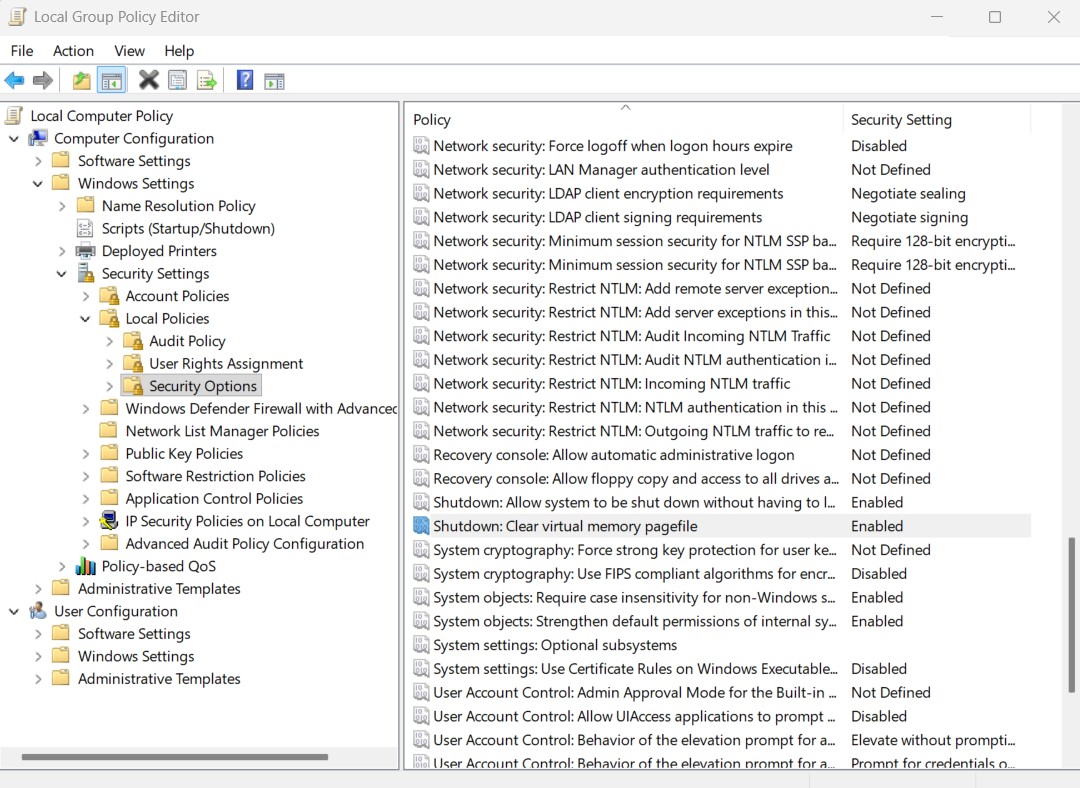
- Navigate to
the policy location (see screenshot below)
- Expand
Computer
              Configuration
in the left panel
-
Expand
Windows Settings
-
Expand
Security Settings
-
Expand
Local Policies
-
Click on
Security Options
- Find the
setting: In the right panel, scroll down and locate
"Shutdown: Clear virtual memory pagefile". There is no Find feature, but the entries are in alphabetical order.
- Double-click on
the setting to open its properties dialog
- Select Enable,
then click Apply to save the setting.
- Your screen should
look like the image below, with the Clear virtual memory
pagefile policy Enabled.
- Restart
your computer for the changes to take effect.
- Note:
Shutdown/Restart may take longer with this setting enabled
This instruction is from page https://windowsloop.com/how-to-reset-virtual-memory-in-windows-10-11/
If it does not work for you, visit that page for instructions that do not involve Windows Policies, or search the internet for an answer to "Windows clear pagefile at shutdown" that is better suited to your setup.
Copyright 2026, GlueLogix Inc. All Rights Reserved.